Rocksky exposes a Subsonic / Navidrome-compatible API. Upload your music to
your private Rocksky library and stream it from any Subsonic client — phone,
desktop, car head unit — without running your own server.
Bring your own S3-compatible storage for your uploaded music, or use Rocksky
storage. You can also stream the same library with any
Jellyfin client.
Step 1: Upload music
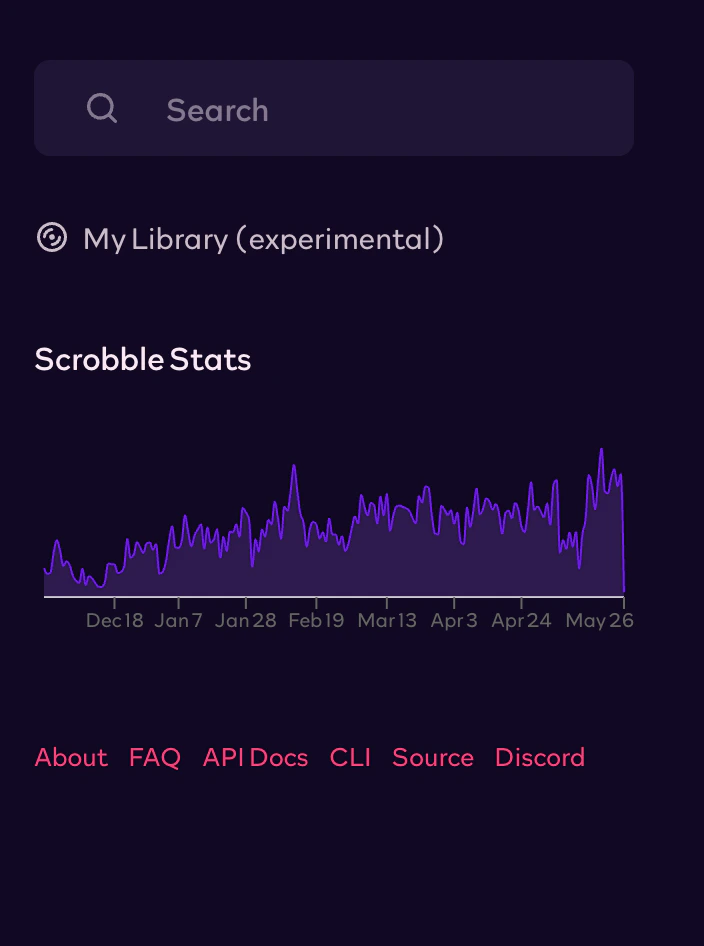
Open My Library in Rocksky’s sidebar:
To store uploads in your own S3-compatible bucket:
- Open Storage and click Connect storage.
- Enter a name, bucket, S3 endpoint, access key ID, secret access key, and region.
- Click Connect & verify.
- On the upload page, select Your storage and choose your bucket.
You can use AWS S3, Cloudflare R2, Backblaze B2, MinIO, or another S3-compatible
provider. Select Rocksky storage to use managed storage instead.
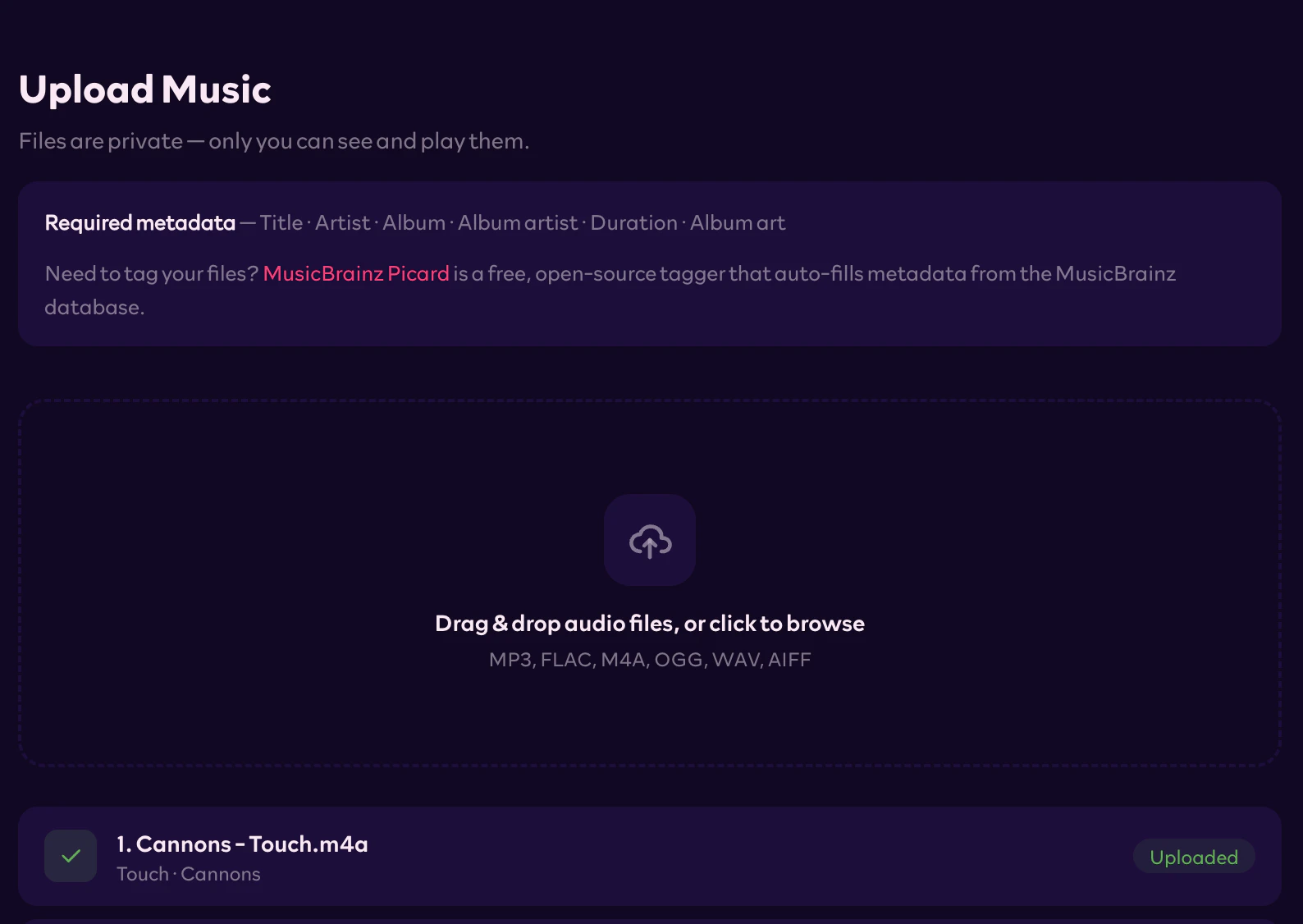
Drag and drop your audio files (MP3, FLAC, M4A, OGG, WAV, AIFF) into the
upload page. Required tags: title, artist, album, album artist, duration,
album art. Need to tag your files first?
MusicBrainz Picard auto-fills metadata
from the MusicBrainz database.
Your uploaded music is private — only you can access and stream your files.
Step 2: Get an API key
Visit the API Keys page and generate a new key.
You’ll use it as the password in your Subsonic client.
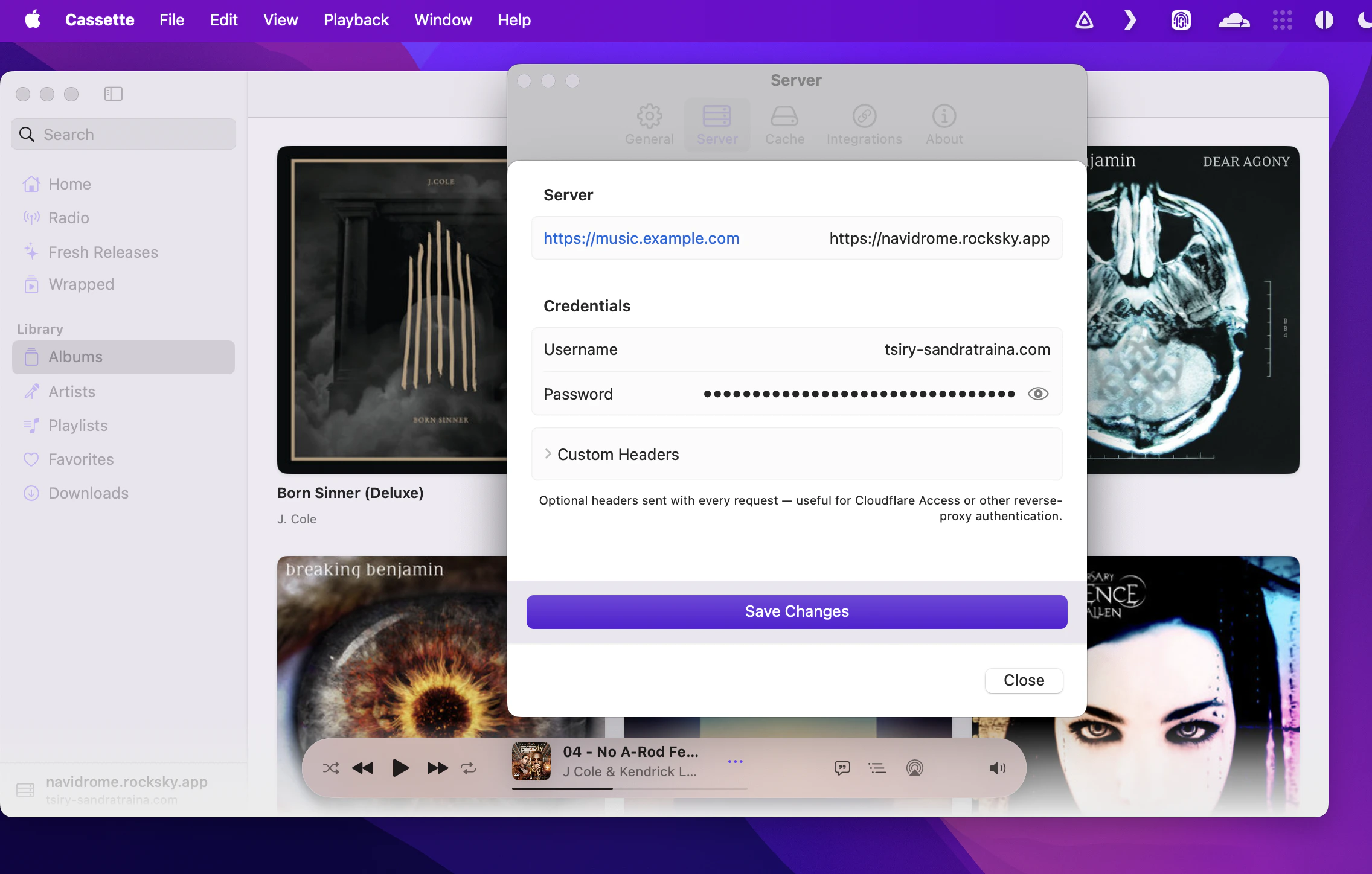
In any Subsonic / Navidrome-compatible app, add a new server with these
details:
Compatible apps
- Symfonium (Android)
- Substreamer (Android, iOS)
- Cassette (iOS)
- play:Sub (iOS)
- Amperfy (iOS, macOS)
- Tempo (iOS, macOS)
- …and many other Navidrome / Subsonic clients.
Scrobbling
Plays from any of these clients are scrobbled automatically — there’s nothing
extra to wire up.