> ## Documentation Index
> Fetch the complete documentation index at: https://docs.rocksky.app/llms.txt
> Use this file to discover all available pages before exploring further.
# Rocksky playerd
> Play your music on a Raspberry Pi or another computer, and control it from Rocksky.
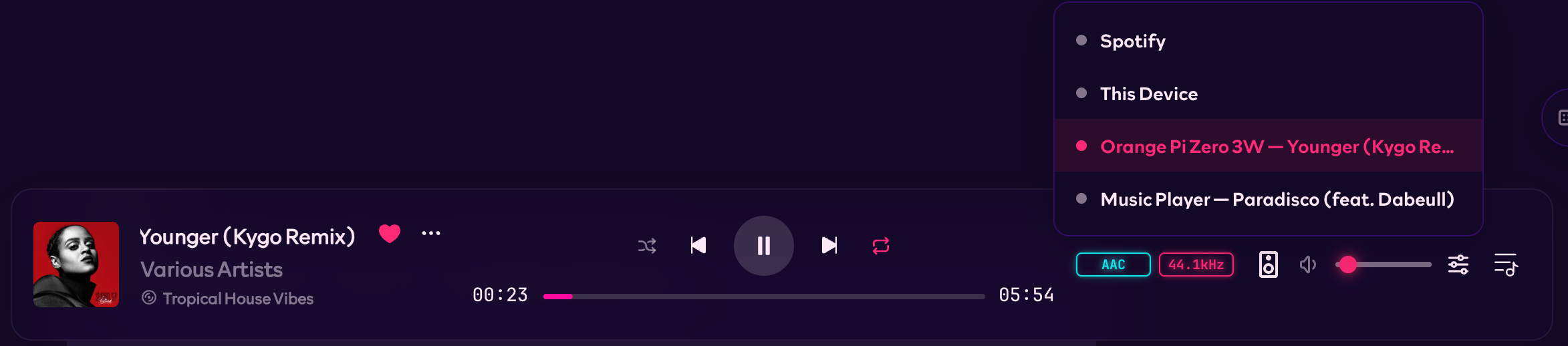
`@rocksky/playerd` is Rocksky's official headless music player. Connect a Raspberry Pi to your speakers, start the daemon, and choose it in the Rocksky Web player. You can browse your library, change tracks, edit the queue, and adjust the volume from another device. The player needs no screen or desktop session.
 ## Install
Prebuilt binaries support Linux x86\_64, Linux aarch64, and Apple Silicon Macs. Use a **64-bit operating system** on your Raspberry Pi. Other platforms need a [build from source](https://tangled.org/rocksky.app/rocksky/tree/main/playerd).
```bash Bun theme={null}
bun install -g @rocksky/playerd
```
```bash Standalone theme={null}
curl -fsSL https://raw.githubusercontent.com/tsirysndr/rocksky/main/playerd/install.sh | sh
```
The standalone installer checks the release checksum and installs to `/usr/local/bin` when writable, or `~/.local/bin` otherwise. Make sure the install directory is in your `PATH`.
On Debian or Ubuntu, install the ALSA runtime if it is missing:
```bash theme={null}
sudo apt-get install libasound2
```
## Sign in and start playing
Install the [Rocksky CLI](/cli/overview), then sign in with your Atmosphere account handle on the computer running playerd:
```bash theme={null}
bun install -g @rocksky/cli
rocksky login alice.bsky.social
rocksky whoami
playerd --name "Living Room"
```
`rocksky login` opens a browser-based authorization flow. On a headless machine, use the access-token option below if you cannot complete that flow locally.
Run the CLI and playerd as the same operating-system user. By default, playerd reads the session from `~/.rocksky/token.json`.
Open [Rocksky](https://rocksky.app) with the same account, choose **Living Room** in the player's device picker, and play music from your library. The audio comes from the computer running playerd.
You can also start with a local file or directory:
```bash theme={null}
playerd --name "Living Room" ~/Music/albums/some-album
```
A player appears in the device list after it publishes track state. If a newly
started device is missing, try starting it with a local music file.
### Other ways to authenticate
Playerd checks these sources in order:
1. `--token` or the `ROCKSKY_TOKEN` environment variable.
2. `token` in its configuration file.
3. The CLI token file, whose location you can override with `token_path`.
For a machine without an interactive login session, you can supply a Rocksky access token through `ROCKSKY_TOKEN`. Treat this as a secret; do not commit it to your configuration repository.
## What you can play
Playerd plays local audio, your Rocksky uploads, and tracks available through your Rocksky Navidrome library. It resolves stream URLs when you enqueue tracks and provisions Navidrome credentials on first use. Those credentials are cached in `~/.rocksky/navidrome.json` and shared with the CLI.
A track in someone's listening history is not necessarily available to stream. Remote queue items need an upload or library track that your account can access.
See [Rocksky as a personal Navidrome server](/integrations/navidrome-server) for more about your library.
## Scrobbling and saved playback
Playerd records a scrobble after you listen to half a track or four minutes, whichever comes first. It does this itself, so you can close the browser and keep listening.
The primary remote device supplies your profile's now-playing status. Selecting another primary device does not disable playerd's own scrobbling. Set `scrobble = false` if you want to turn that off.
By default, playerd saves the queue and playback position. After a restart, it restores them **paused**; it does not start playing automatically.
## Configure playerd
Create `~/.rocksky/playerd.toml`:
```toml theme={null}
name = "Living Room"
output = "cpal"
buffer_seconds = 10.0
scrobble = true
resume = true
sync_audio_settings = true
```
Settings load in this order: defaults, configuration file, environment variables, then command-line flags. Run `playerd --help` for the available flags.
`cpal` uses your system's default audio output. Playerd also supports raw PCM output through `stdout`, a pre-existing `fifo:/path`, or a listening `unix:/path` or `tcp:address` socket. Socket outputs wait for a client before playback starts.
With `sync_audio_settings = true`, playerd follows the audio settings saved to your Atmosphere account. You can also change supported settings remotely, including the equalizer, ReplayGain, crossfade, and Auto DJ.
Restart playerd after changing startup settings such as `output`, `buffer_seconds`, `resume`, `scrobble`, or `sync_audio_settings`.
## Run in the background on Linux
You can use a systemd user service to keep playerd running. First, find the executable:
```bash theme={null}
command -v playerd
mkdir -p ~/.config/systemd/user
```
Create `~/.config/systemd/user/playerd.service`. Replace the `ExecStart` path below with the absolute path returned by `command -v playerd`:
```ini theme={null}
[Unit]
Description=Rocksky remote player
After=network-online.target sound.target
[Service]
ExecStart=%h/.local/bin/playerd --name "Living Room"
Restart=on-failure
RestartSec=3
[Install]
WantedBy=default.target
```
Sign in with the CLI as that user before starting the service:
```bash theme={null}
systemctl --user daemon-reload
systemctl --user enable --now playerd
journalctl --user -u playerd -f
```
To start the user service at boot without logging in, enable lingering for that user:
```bash theme={null}
sudo loginctl enable-linger "$USER"
```
## Troubleshooting
| Problem | What to check |
| ---------------------------- | --------------------------------------------------------------------------------------------------------------------- |
| Missing access token | Run `rocksky login` as the user running playerd, or provide `ROCKSKY_TOKEN`. |
| Device missing from Rocksky | Use the same account on both devices, check connectivity, and start with a local track so the player publishes state. |
| `NoOutputDevice` or no sound | Check your system's default audio output and ALSA or PipeWire setup. |
| Track cannot stream | Check that it has an accessible upload or Navidrome track ID. Look for credential errors in the logs. |
| Playback stutters | Check the network and increase `buffer_seconds`. |
For more detailed logs, stop the background service first, then run:
```bash theme={null}
RUST_LOG=playerd=debug,rocksky_sdk=debug playerd
```
## Build an integration
Playerd uses the [remote player protocol](/players/remote-protocol). You can use the same protocol to build a controller or connect another music player to Rocksky.
[View playerd source on Tangled](https://tangled.org/rocksky.app/rocksky/tree/main/playerd).
## Install
Prebuilt binaries support Linux x86\_64, Linux aarch64, and Apple Silicon Macs. Use a **64-bit operating system** on your Raspberry Pi. Other platforms need a [build from source](https://tangled.org/rocksky.app/rocksky/tree/main/playerd).
```bash Bun theme={null}
bun install -g @rocksky/playerd
```
```bash Standalone theme={null}
curl -fsSL https://raw.githubusercontent.com/tsirysndr/rocksky/main/playerd/install.sh | sh
```
The standalone installer checks the release checksum and installs to `/usr/local/bin` when writable, or `~/.local/bin` otherwise. Make sure the install directory is in your `PATH`.
On Debian or Ubuntu, install the ALSA runtime if it is missing:
```bash theme={null}
sudo apt-get install libasound2
```
## Sign in and start playing
Install the [Rocksky CLI](/cli/overview), then sign in with your Atmosphere account handle on the computer running playerd:
```bash theme={null}
bun install -g @rocksky/cli
rocksky login alice.bsky.social
rocksky whoami
playerd --name "Living Room"
```
`rocksky login` opens a browser-based authorization flow. On a headless machine, use the access-token option below if you cannot complete that flow locally.
Run the CLI and playerd as the same operating-system user. By default, playerd reads the session from `~/.rocksky/token.json`.
Open [Rocksky](https://rocksky.app) with the same account, choose **Living Room** in the player's device picker, and play music from your library. The audio comes from the computer running playerd.
You can also start with a local file or directory:
```bash theme={null}
playerd --name "Living Room" ~/Music/albums/some-album
```
A player appears in the device list after it publishes track state. If a newly
started device is missing, try starting it with a local music file.
### Other ways to authenticate
Playerd checks these sources in order:
1. `--token` or the `ROCKSKY_TOKEN` environment variable.
2. `token` in its configuration file.
3. The CLI token file, whose location you can override with `token_path`.
For a machine without an interactive login session, you can supply a Rocksky access token through `ROCKSKY_TOKEN`. Treat this as a secret; do not commit it to your configuration repository.
## What you can play
Playerd plays local audio, your Rocksky uploads, and tracks available through your Rocksky Navidrome library. It resolves stream URLs when you enqueue tracks and provisions Navidrome credentials on first use. Those credentials are cached in `~/.rocksky/navidrome.json` and shared with the CLI.
A track in someone's listening history is not necessarily available to stream. Remote queue items need an upload or library track that your account can access.
See [Rocksky as a personal Navidrome server](/integrations/navidrome-server) for more about your library.
## Scrobbling and saved playback
Playerd records a scrobble after you listen to half a track or four minutes, whichever comes first. It does this itself, so you can close the browser and keep listening.
The primary remote device supplies your profile's now-playing status. Selecting another primary device does not disable playerd's own scrobbling. Set `scrobble = false` if you want to turn that off.
By default, playerd saves the queue and playback position. After a restart, it restores them **paused**; it does not start playing automatically.
## Configure playerd
Create `~/.rocksky/playerd.toml`:
```toml theme={null}
name = "Living Room"
output = "cpal"
buffer_seconds = 10.0
scrobble = true
resume = true
sync_audio_settings = true
```
Settings load in this order: defaults, configuration file, environment variables, then command-line flags. Run `playerd --help` for the available flags.
`cpal` uses your system's default audio output. Playerd also supports raw PCM output through `stdout`, a pre-existing `fifo:/path`, or a listening `unix:/path` or `tcp:address` socket. Socket outputs wait for a client before playback starts.
With `sync_audio_settings = true`, playerd follows the audio settings saved to your Atmosphere account. You can also change supported settings remotely, including the equalizer, ReplayGain, crossfade, and Auto DJ.
Restart playerd after changing startup settings such as `output`, `buffer_seconds`, `resume`, `scrobble`, or `sync_audio_settings`.
## Run in the background on Linux
You can use a systemd user service to keep playerd running. First, find the executable:
```bash theme={null}
command -v playerd
mkdir -p ~/.config/systemd/user
```
Create `~/.config/systemd/user/playerd.service`. Replace the `ExecStart` path below with the absolute path returned by `command -v playerd`:
```ini theme={null}
[Unit]
Description=Rocksky remote player
After=network-online.target sound.target
[Service]
ExecStart=%h/.local/bin/playerd --name "Living Room"
Restart=on-failure
RestartSec=3
[Install]
WantedBy=default.target
```
Sign in with the CLI as that user before starting the service:
```bash theme={null}
systemctl --user daemon-reload
systemctl --user enable --now playerd
journalctl --user -u playerd -f
```
To start the user service at boot without logging in, enable lingering for that user:
```bash theme={null}
sudo loginctl enable-linger "$USER"
```
## Troubleshooting
| Problem | What to check |
| ---------------------------- | --------------------------------------------------------------------------------------------------------------------- |
| Missing access token | Run `rocksky login` as the user running playerd, or provide `ROCKSKY_TOKEN`. |
| Device missing from Rocksky | Use the same account on both devices, check connectivity, and start with a local track so the player publishes state. |
| `NoOutputDevice` or no sound | Check your system's default audio output and ALSA or PipeWire setup. |
| Track cannot stream | Check that it has an accessible upload or Navidrome track ID. Look for credential errors in the logs. |
| Playback stutters | Check the network and increase `buffer_seconds`. |
For more detailed logs, stop the background service first, then run:
```bash theme={null}
RUST_LOG=playerd=debug,rocksky_sdk=debug playerd
```
## Build an integration
Playerd uses the [remote player protocol](/players/remote-protocol). You can use the same protocol to build a controller or connect another music player to Rocksky.
[View playerd source on Tangled](https://tangled.org/rocksky.app/rocksky/tree/main/playerd).