> ## Documentation Index
> Fetch the complete documentation index at: https://docs.rocksky.app/llms.txt
> Use this file to discover all available pages before exploring further.
# Claude Desktop (MCP)
> Query your scrobble history from Claude Desktop using the Rocksky MCP server.
The Rocksky CLI ships a [Model Context Protocol](https://modelcontextprotocol.io)
server. Plug it into Claude Desktop and Claude can read your scrobble history,
top artists, now playing, and search the Rocksky catalog.
## Prerequisites
* [Node.js](https://nodejs.org/) and `npm`
* [Claude Desktop](https://claude.ai/download)
* A [Rocksky](https://rocksky.app) account
## Install the CLI
```bash theme={null}
npm install -g @rocksky/cli
```
## Add the MCP server to Claude Desktop
Open Claude Desktop's settings, find the **MCP** section, and add this entry
to your config:
```json theme={null}
{
"mcpServers": {
"rocksky": {
"command": "rocksky",
"args": ["mcp"]
}
}
}
```
Restart Claude Desktop to load the server.
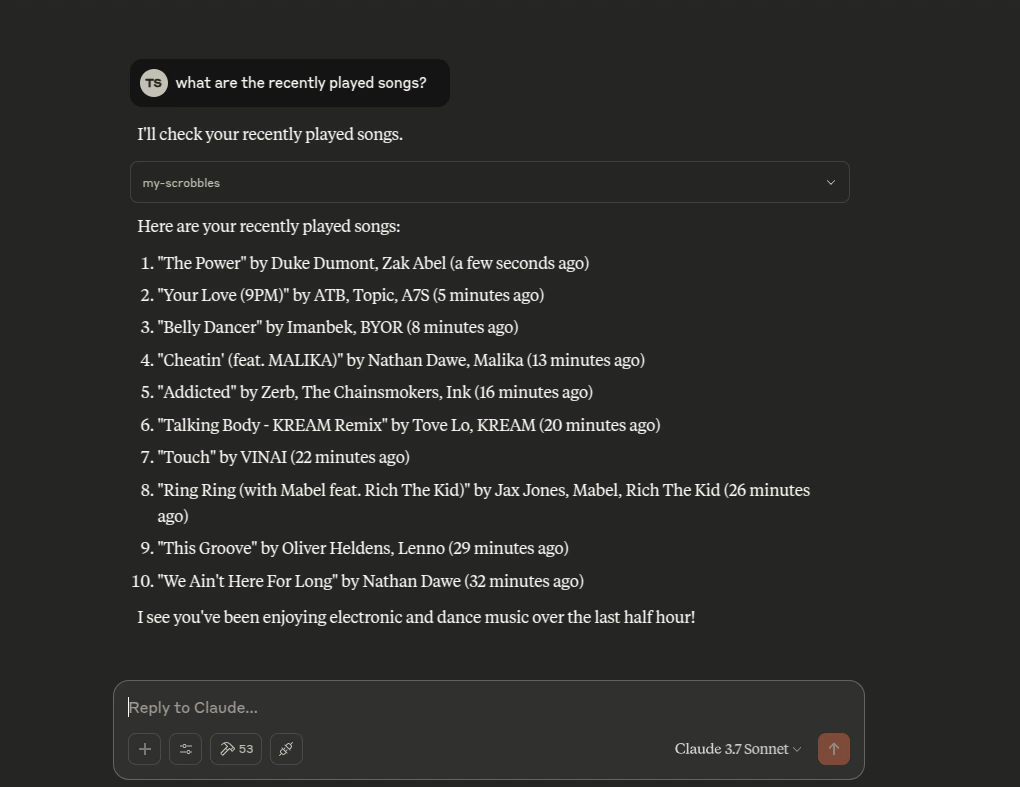
## What you can ask
* "What were my top 10 tracks last week?"
* "What am I listening to right now?"
* "Show me the recent scrobbles for @alice.bsky.social"
* "Search Rocksky for albums by Radiohead"
* "Create a new API key called `my-bot`"
 ## Troubleshooting
* Confirm the CLI is on your PATH: `rocksky --help`
* Make sure you've logged in once: `rocksky login `
* Restart Claude Desktop after editing the MCP config
* Check Claude Desktop's MCP logs if a tool call fails
See the [`rocksky mcp`](/cli/mcp) command reference for more.
## Troubleshooting
* Confirm the CLI is on your PATH: `rocksky --help`
* Make sure you've logged in once: `rocksky login `
* Restart Claude Desktop after editing the MCP config
* Check Claude Desktop's MCP logs if a tool call fails
See the [`rocksky mcp`](/cli/mcp) command reference for more.